See your tracking.
As it happens.
Record your own journey in Chrome. Follow the events, calls and requests behind it.
For Chrome desktop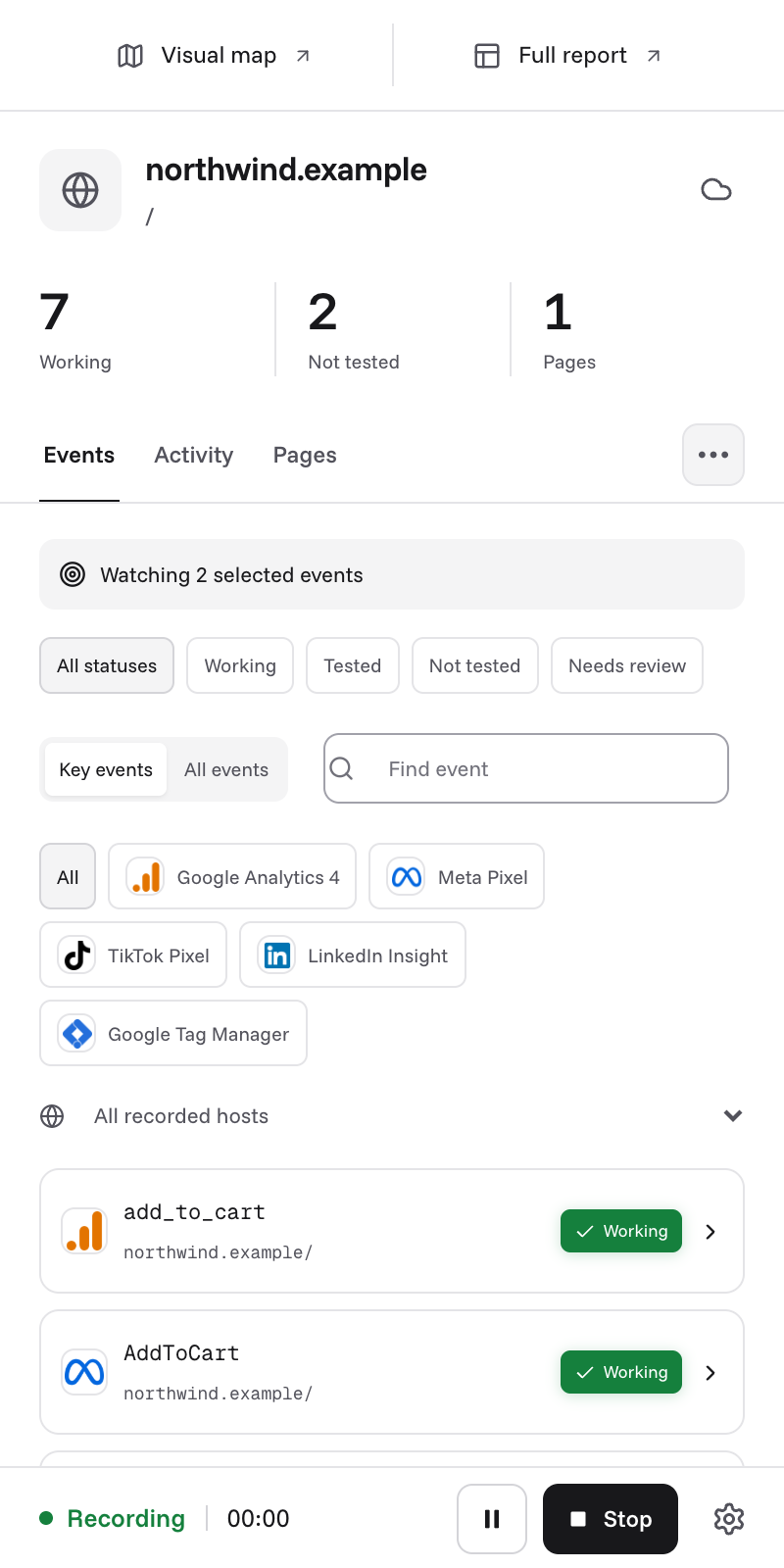
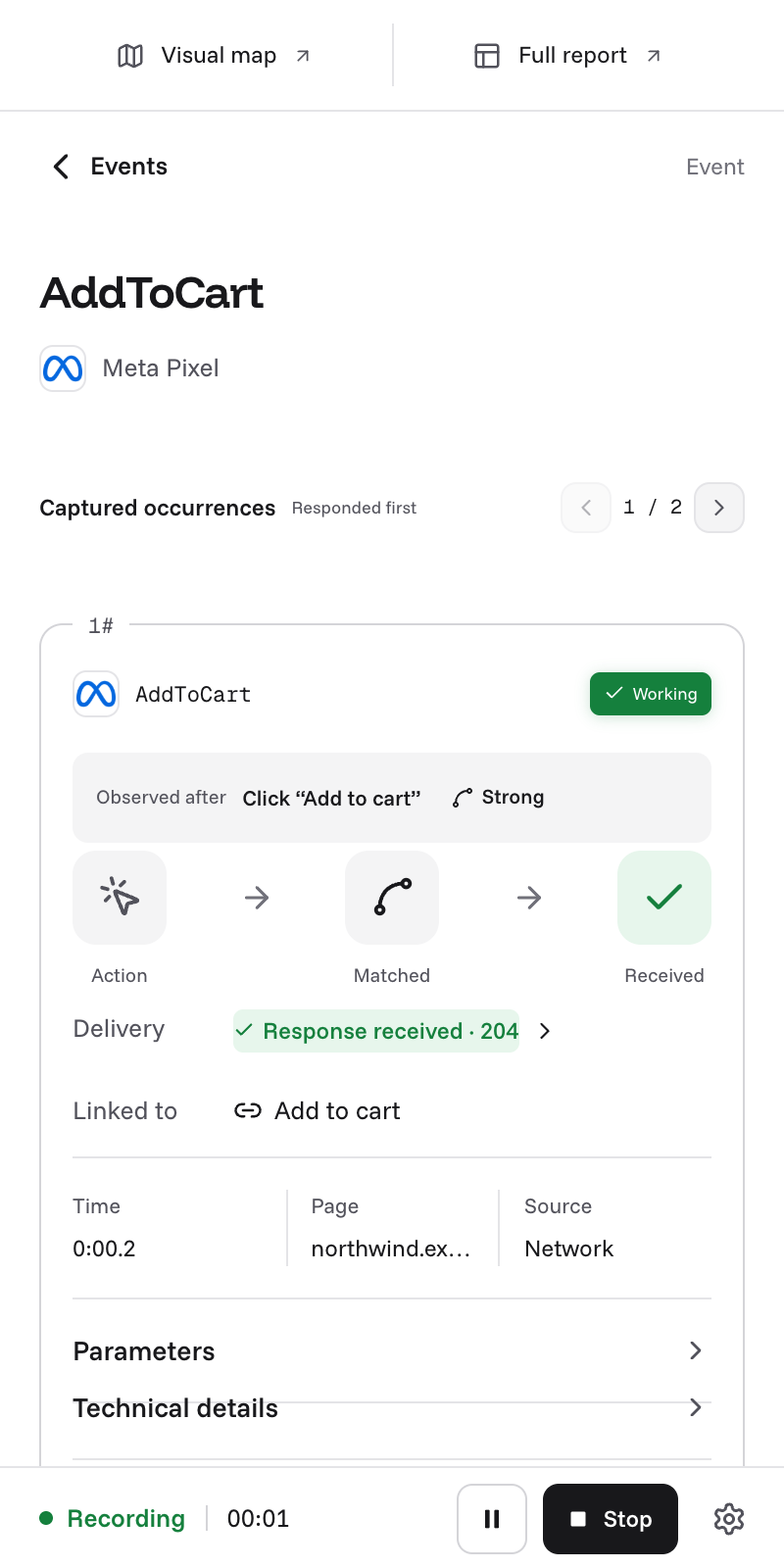
Actual extension · Fictional example recording
Follow the journey that matters.
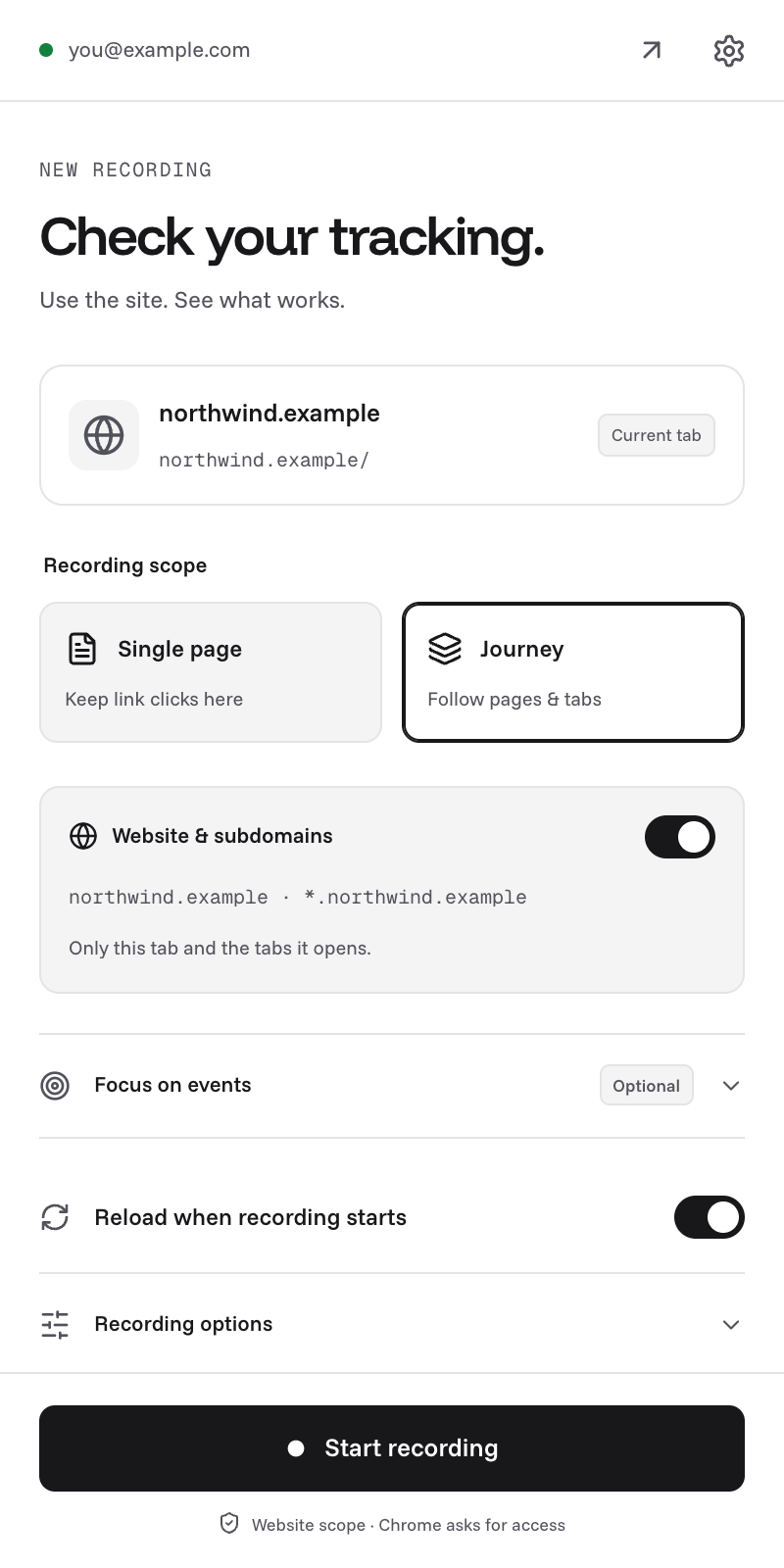
Actual extension · Fictional Northwind shop
Ready when you are.
Install from the store, then choose what to record.
Add to Chrome
Open the Chrome Web Store listing and select Add to Chrome.
Open Orbit Live
Pin Orbit Live from Chrome’s extensions menu and open the side panel.
Connect your account
Connect in the panel and approve in your Orbit dashboard. Connected recordings upload to your account.
Start recording
Choose Single page or Journey. Include subdomains if needed, then browse your chosen site.
You choose when
recording starts.
Record locally without an account. Connect when you want recordings in your Orbit project.
Orbit Live asks for site access. It does not read saved browsing history or record what you type into forms. Read about privacy
Frequently asked
questions.
A little clarity before you start.
Do I need to install an extension?
Page tests run from Orbit without an extension. Install Orbit Live for Chrome desktop when you want to record your own browsing journey and inspect tracking as it happens.
What does Working mean?
It describes captured output. In Orbit Live, Working means a captured request received a response. A page test can also verify protected test output without sending it to a live account. It does not confirm that GA4 or an ad account processed or counted the event.
How do I install Orbit Live?
The extension page shows the current installation option. If the developer preview is offered, download and extract the ZIP, open chrome://extensions, enable Developer mode and choose Load unpacked. If a store release is configured, use its official listing. Record locally or connect your Orbit account to upload recordings.